
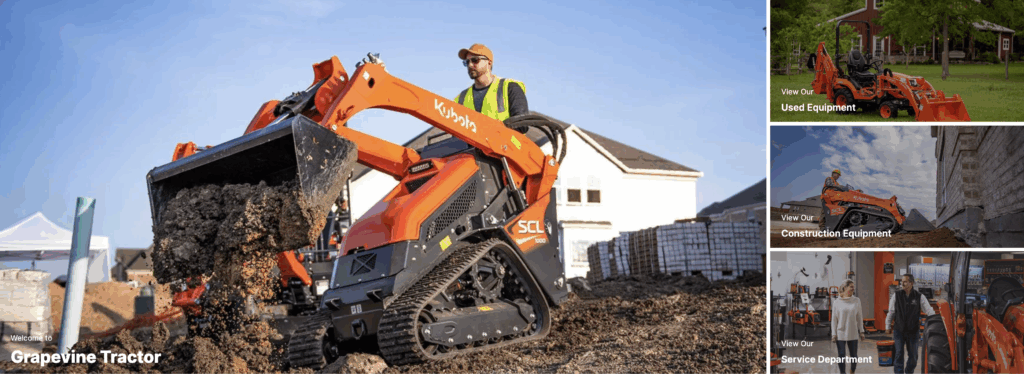
🛠️ Editing the Panel Hero Block
A flexible and eye-catching layout—here’s how to make it yours.
🎥 Prefer to Watch Instead?
📺 Click here for the Video Walkthrough
Get a step-by-step visual guide on adding and customizing the Panel Hero block.
➕ Add Panel Hero to Your Homepage
- Navigate to your homepage editor.
- Click the ➕ button to add a new block.
- Search for “Panel Hero” and select it.
- Choose 2 or 3 panels—your call!
🎨 Customize Each Panel
- Add Media: Click into the panel and add an image or video.
- Want to embed a video? Paste your YouTube or Vimeo URL—it’ll load automatically!
- Add a Link: Click the panel → set the link → check “open in new tab” if needed.
✏️ Add & Style Text
- Headline: Add your main message here
- Adjust font size and styling as needed
- Subtitle: Add supporting info
- Colors:
- Set text color, subtext color, and text background
- Want a clean look? Click “Clear” to remove the background color
🔁 Resetting or Changing a Panel
- Want to switch from 2 to 3 panels (or vice versa)? Add or remove a panel—just note you may need to reapply your previous settings.
✅ When You’re Done
- Hit Publish to go live
- Want to preview? Click Save → then View Page
✨ Pro Tip: Keep your message short, images clear, and links meaningful for the best impact!
Need help? Reach out—we’re always here to guide you.