
🎯 Promotions: Show Off Specials, Packages & More
Promotions are a great way to spotlight limited-time offers, package deals, and sales you want front and center on your site.
🛠️ Creating a New Promotion
Video Walkthrough:
Navigate to Promotions in the left-hand menu

Click Add Promotion
Fill in the details your customers need:
- Promotion Title
- Subtitle
- Description
- Disclaimer (if needed)
- Start + End Date (to automate visibility and removal)
On the right-hand side, assign a category
– This helps organize your promos and powers filtering if needed

Want it to stand out?
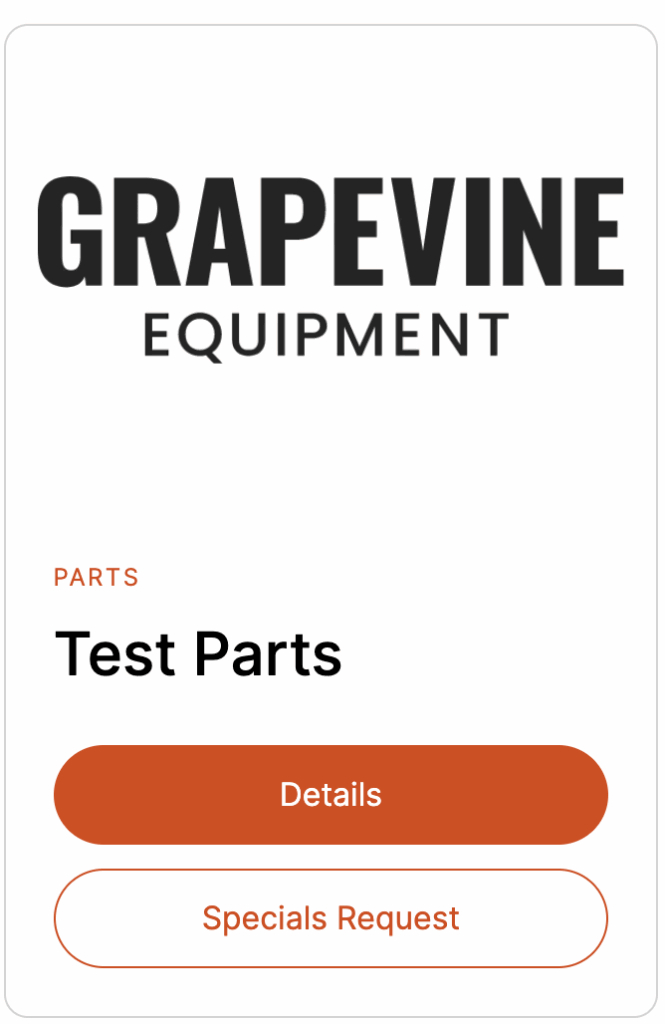
Add a Featured Image under the category section
– This image will display in the promo card, like where “Grapevine Equipment” appears in the sample
🎉 Adding and Automating Promotions on Your Site
Adding promotions just got easier — and smarter! With automated filtering, your promos will display in all the right places without any extra work from you. 🙌
🎥 Video Walkthrough
Follow along in our video for a full step-by-step guide on setting up and automating your promotions block.
⚙️ Before You Begin
Make sure your promotions are already created and assigned to a Category.
Here’s how to double-check:
- Navigate to your promotion in the backend.
- Choose or create a category — for example, Equipment or Tractor Packages.
- Click Update to save your changes.
🧭 Adding Promotions to a Page
- Head to the page where you want your promotions to appear — like your Homepage or Specials Page.
- If there isn’t already a Promotions Block, click the ➕ plus icon and search for “Promotions.”
- You’ll now see a few options for how your promotions appear:
- All Promotions: Displays everything you’ve created.
- By Category: Select a specific category (like Tractor Packages) so any new promos in that category automatically appear here.
🎯 Customize Your Display
- Sorting: Choose how to sort promotions — by Publish Date or Name, in Ascending or Descending order.
- Default Message: You can display a message like “There’s nothing available at this time.”
- For the homepage, we recommend selecting No Message, since Kubota offers already display there.
- Columns: Adjust how many promotions display across the page — 2, 3, or more depending on your layout.
Once you’re happy with your setup, click Save.
🧩 Repeat for Other Pages
Want to show different promotions on other pages?
You can repeat the same setup for:
- Equipment Specials
- Parts Specials
- Service Specials
Just select the matching Category for each page and save your changes.
👉 Remember: your promotion must be assigned to that category for it to filter correctly.
✅ That’s It!
Your promotions are now fully automated — new promos will populate automatically by category with no extra work.
💡 Pro Tip: Watch the full walkthrough video above for a visual guide!
💬 Need a hand? Reach out anytime to Support@TracTru.com — we’re here to help.
⏳ Short on Time? We’ve Got You.
Have the graphics and promo details ready, but not the time to get them posted? No problem.
Just fill out this form and our team will take care of adding your promotions for you—quick and easy.